
Message templates let you build a library of pre-written responses that you can send to enquiries in seconds. Whether you're following up on a lead, sharing pricing, or sending event details, templates mean you're never starting from scratch. The faster you respond, the more likely you are to convert an enquiry into a booking.
Getting Started
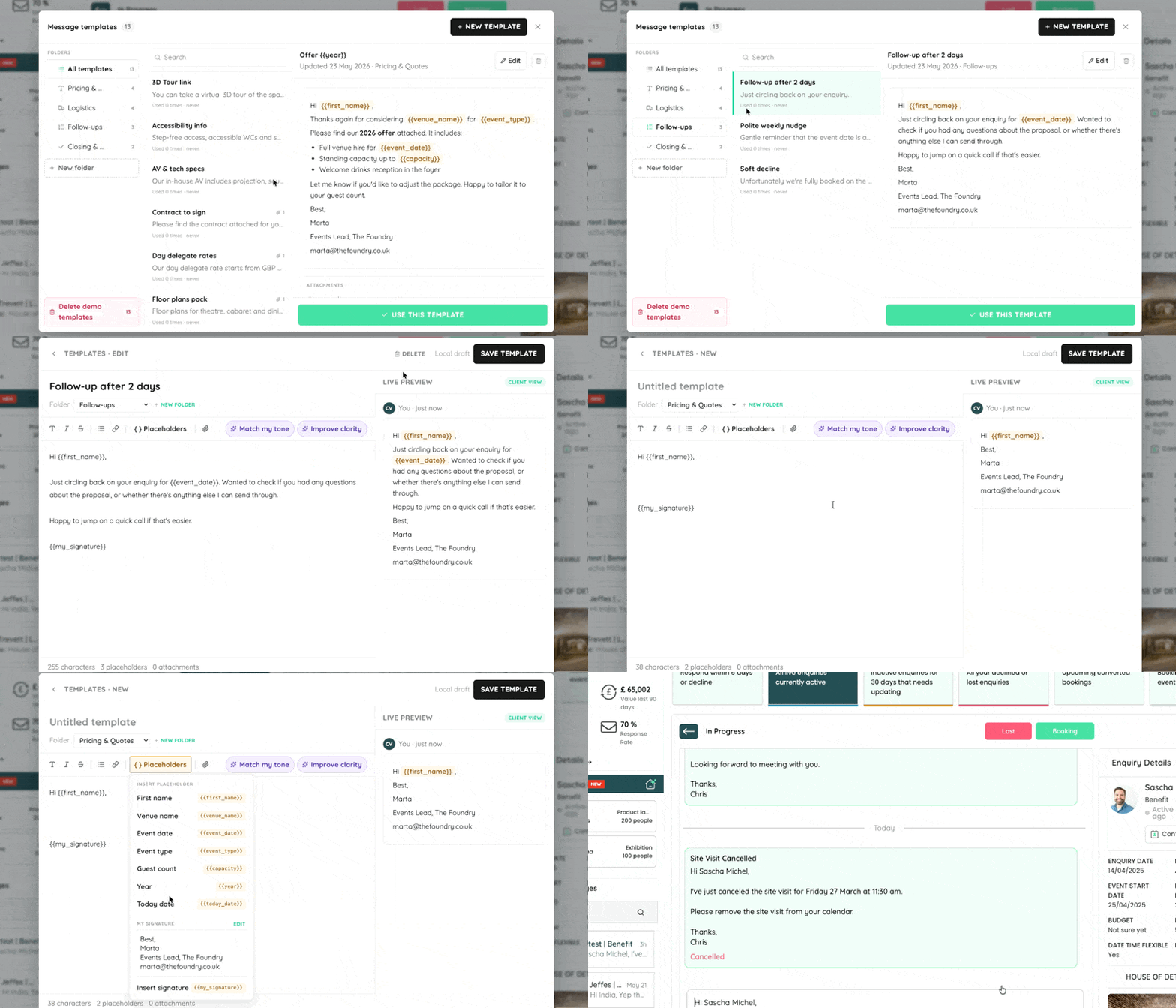
When you first access Message Templates in your Canvas dashboard, you'll find 13 demo templates already set up. These cover common response types and are ready to use straight away.
You can:
- Use a demo template as-is
- Edit it to match your voice and content
- Replace it entirely with your own version
- Create as many new templates as you need from scratch
⚠️ Important: Once you edit a demo template, it becomes your own customised version. It will no longer be labelled as a demo. Before saving, make sure to remove any placeholder PDFs or documents that came with the demo — these are sample attachments and should be replaced with your own files.
Organising Templates with Folders
You can create folders to keep your templates organised. This is especially useful as your library grows.
Some ways to use folders:
- By follow-up type — e.g. "Initial Response", "Pricing Enquiries", "Site Visit Follow-Up"
- By venue — if you manage multiple venues, create a folder per venue with tailored responses for each
- By event type — e.g. "Weddings", "Corporate Events", "Private Hire"
You can create, rename, and edit folders at any time.
Attaching Documents to Templates
Templates support file attachments, so you can attach:
- Venue brochures
- Pricing guides
- Event menus or packages
- Terms and conditions
This means your key documents go out automatically with the right template, without you needing to dig through files every time.
💡 Tip: When editing a demo template that includes a sample document, always remove it and attach your own before saving.
Using Placeholders
Templates support placeholders, which pull in relevant details automatically when you send a message. This keeps responses personal without requiring manual edits each time.
You can also create a personal signature and insert it into your templates using a placeholder, so every message goes out consistently branded.
🤖 AI Writing Assistance
Built-in AI tools help you write and refine your templates. You can use AI to:
- Match your tone by analysing your previous conversations on Canvas
- Improve clarity — sharpen the message so it reads better
- Fix grammar and punctuation — clean up any errors quickly
This is particularly useful when building templates from scratch or when you want to make sure a draft template sounds right before saving it.
👁️ Preview Mode
When editing a template, you can switch to preview mode to see exactly how the message will appear to the client before you send it. What you see is what they get — so there are no surprises with formatting.
Best Practice Tips
- Create templates for your most common responses first — initial replies, pricing follow-ups, and booking confirmations tend to be the highest volume.
- Use folders from the start — even if you only have a few templates now, organising by folder makes it much easier to scale.
- Keep templates personal — use the AI tone-matching feature to make sure they sound like you, not like a generic automated message.
- Review your templates regularly — if your pricing, packages, or venue details change, update your templates at the same time.
- Attach documents in the template — this saves time and ensures the right files always go to the right type of enquiry.
Why This Matters
Response speed is one of the biggest factors in converting an enquiry into a booking. Venues that respond quickly get more engagement, more conversations, and more bookings. Message templates remove the friction from replying — so you can get back to enquiries faster, even during a busy period.
Still Need Help?
If you have questions about setting up your templates or need a hand getting started, contact our support team via the Canvas dashboard