
After months in development, the new Canvas dashboard is here—and it’s designed to make enquiry management, client communication, and performance tracking smoother, faster, and more transparent.
In this guide, you’ll find everything you need to know about the new dashboard: how it works, how to respond to enquiries, what’s changed, and what exciting new features are coming soon.
🚀 Why We Built a New Dashboard
Emails are becoming less reliable due to spam filters and security settings, especially with corporate clients. The new dashboard gives you:
-
A centralised space to manage all enquiries
-
The ability to respond via in-app messaging or email
-
A clear view of your enquiry pipeline and performance
-
Instant notifications, smarter tracking, and AI-powered insights
📇The main features
1. Centralised Enquiry Management
Manage all your enquiries in one place—respond via in-app messaging or email, track status updates automatically, and get a clear view of your pipeline at every stage.
2. Performance & Reporting Dashboard
See how your venue is performing at a glance, including response times, conversion insights, and reasons for lost or declined enquiries. Easily switch between venues if you manage more than one.
3. Real-Time Notifications & In-App Messaging
Receive browser notifications and real-time message alerts. Clients can reply through their own login, and all conversations are tracked in the system—keeping everything visible and organised.
4. Smart Email Integration with Tokenised Addresses
Every enquiry generates a unique reply address, allowing the system to track who responded and when. Replies must come from registered users to ensure communication is logged and reaches the client.
🔍 Navigating the Dashboard
From Left to Right:
-
Performance Data – View key metrics at a glance
-
Venue Switcher – Easily switch between multiple venues
-
Messages & Notifications – See the latest messages, new enquiries, and system updates
-
In-App Chat – Communicate directly with clients, attach files (under 100MB), or send voice notes
Clients now have their own login too, with in-browser notifications and the ability to reply in-platform or by email.
📩 How Enquiries Work
-
New enquiries will appear in the inbox
-
When you respond, the enquiry is automatically moved to In Progress
-
If you don’t respond within 5 working days, the enquiry is moved to Lost and marked as “no response”
-
You can manually mark an enquiry as Lost, or use the Decline function (with or without sending an email to the client)
-
Declined and lost enquiries help you track why opportunities are missed via mini dashboards
📎 Responding to Enquiries & Messaging Clients
You can respond via:
-
In-app chat
-
Email (each enquiry has a unique tokenised reply address)
💡 Important:
-
Team members must be set up as Canvas users to respond and receive replies.
-
If enquiries are forwarded to someone not set up, their responses won’t reach the client.
-
Each user has a unique reply address per enquiry, enabling us to track who replied and when.
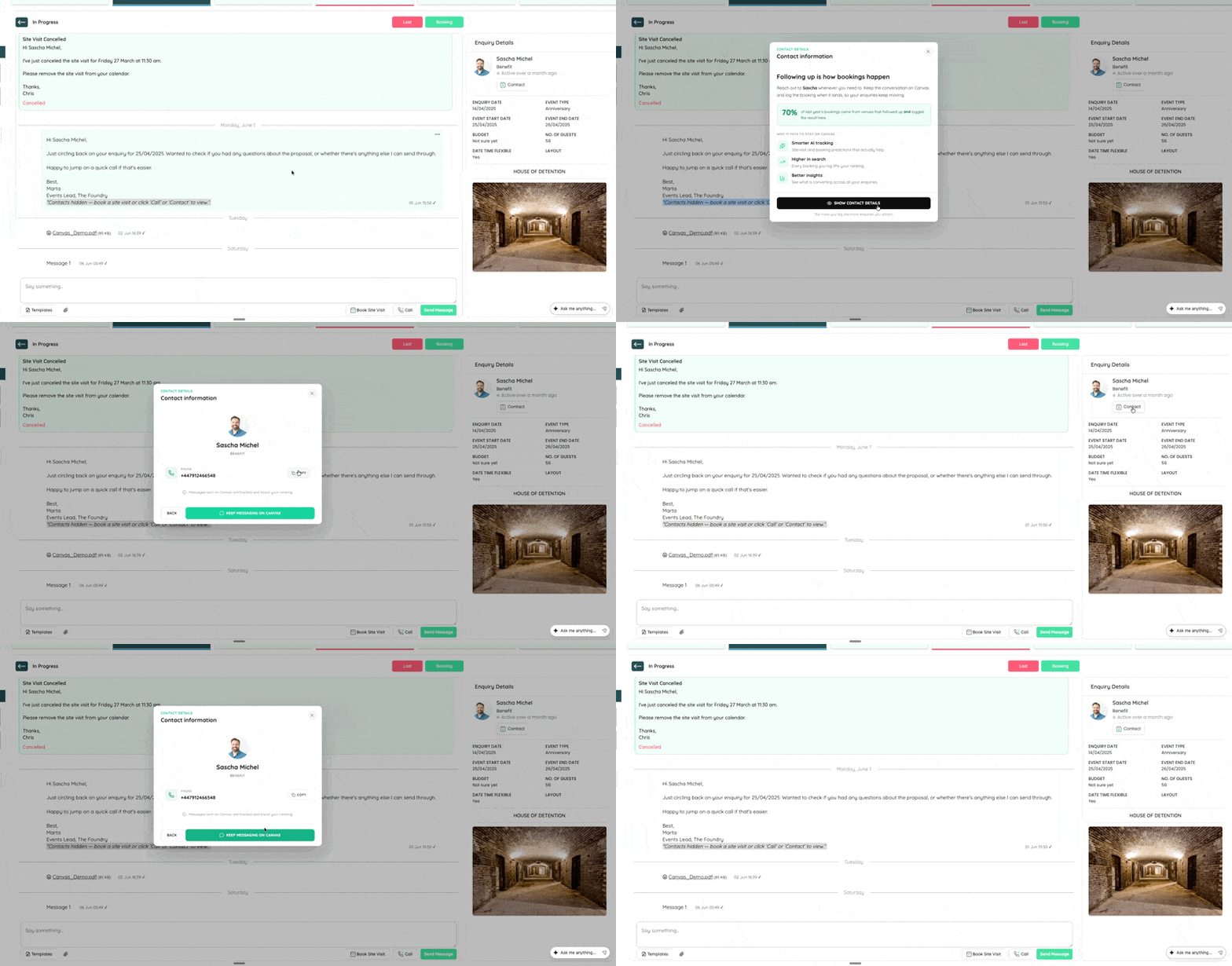
📇 Requesting Contact Details
Once you’ve responded to an enquiry:
-
Use the "Request Contact Details" button to unlock the client’s email and phone number
-
This is logged with a timestamp for reporting purposes
-
Helps us track off-platform interactions and enrich AI insights
How Statuses Work
| Status | What It Means |
|---|---|
| New | Awaiting your first response |
| In Progress | You’ve responded and the conversation is active |
| Needs Finalising | No engagement after 30 days—will move to Lost if no response by day 60 |
| Booking Confirmed | Client confirmed—log final spend to appear in booking stats |
| Lost | Manually marked or auto-moved due to inactivity |
| Happened | Automatically moved here once the event date has passed |
📅 Book site vists
The Book Site Visit tool lets you schedule visits and unlock client contact details without leaving the platform. From any message thread, click Book Site Visit and choose how you want to proceed:
- Send a Request — propose a date and time for the client to accept or counter. Once agreed, a calendar invite is sent to both parties automatically.
- Book Directly — use this when you've already agreed a time in the chat. It skips the approval step, marks the enquiry as Site Visit Booked instantly, and generates your calendar link straight away.
Contact details are shared automatically once the visit is confirmed, so there's no need to exchange them separately.
🤖 AI-Powered Insights
AI Booking Predictions analyses your message conversations and predicts how likely an enquiry is to convert, flagging anything from a 70% chance of booking through to a confirmed site visit. You'll see these predictions as tags in your dashboard and in a dedicated AI Predictions view from the left menu. A few things to know:
- Predictions only appear once there have been at least 3 messages exchanged on the platform and the model detects a strong enough signal
- If an enquiry has gone to Lost, you can still find it, drag it back to In Progress, and log the booking
- Keeping your conversations on Canvas is essential — calls or emails outside the platform can't be analysed
AI Call Summaries captures calls made to your profile number and turns them into actionable enquiries. Within 24 hours you'll receive a written summary, an audio recording, and a new enquiry entry in your dashboard tagged as a Call. From there, you can treat it like any other enquiry — follow up, mark as Booking, or log the spend.
🛠 Support, Help & Reporting Bugs
You can:
-
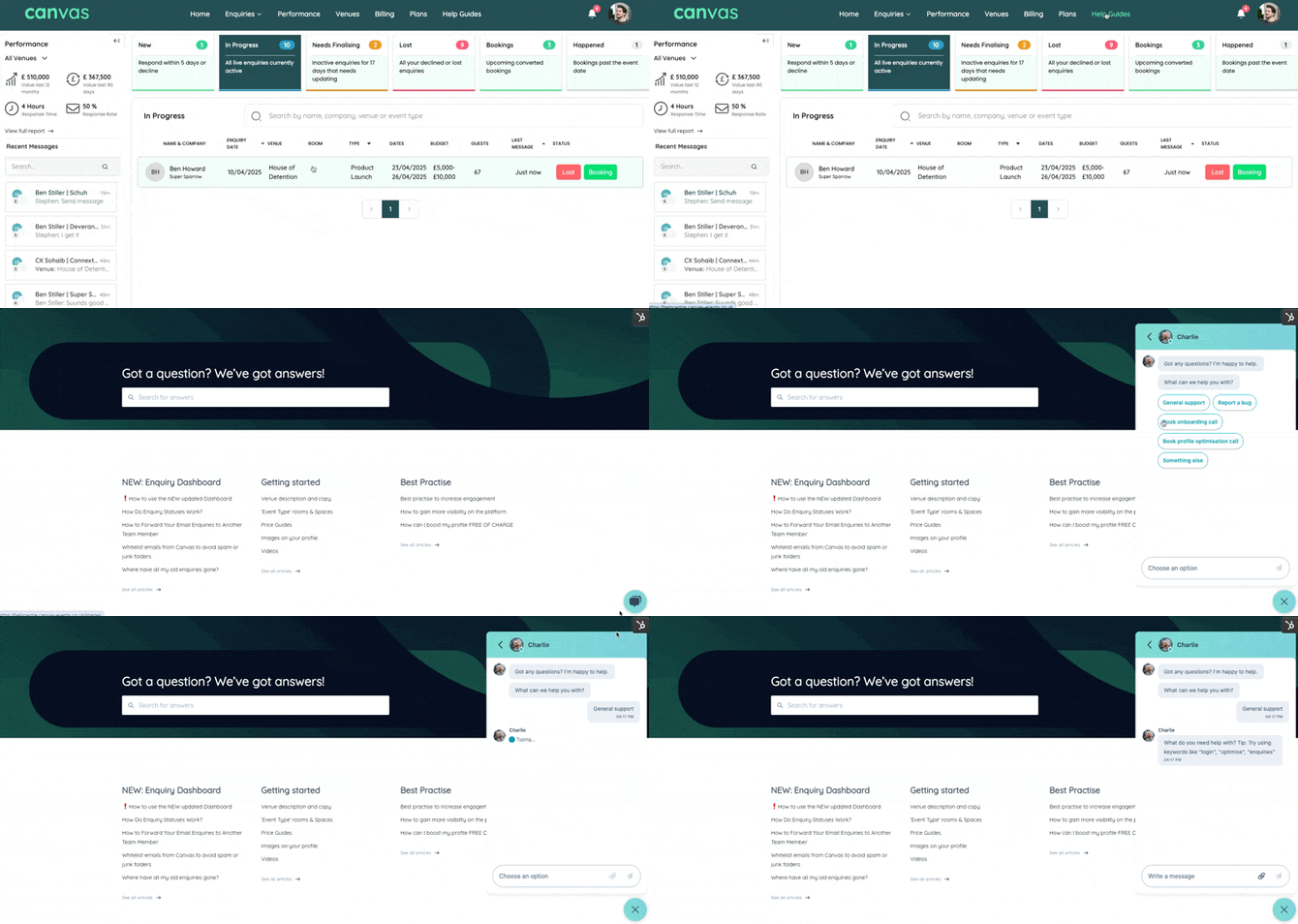
Use the new in-app help guide for walkthroughs, FAQs, and best practice tips
-
Reach out via the live chat on your dashboard
-
Report bugs or feedback – our team is here and ready to support you
🙌 The dashboard is brand new, and while we’ve tested thoroughly, there may be bugs. Please flag anything you notice so we can continue improving.
🌟 Final Thoughts
We're committed to helping you:
-
Stay visible
-
Save time
-
Secure more bookings
The more you use the dashboard—responding quickly, logging bookings, and keeping communication central—the more visibility your venue will receive across the platform.
Got questions or feedback? Charlie and the team are just a click away. 💬